

Users and permissions
Invite members and choose what each workspace role can do.
Settings > Users is where you invite members, assign their workspace role, and remove them.
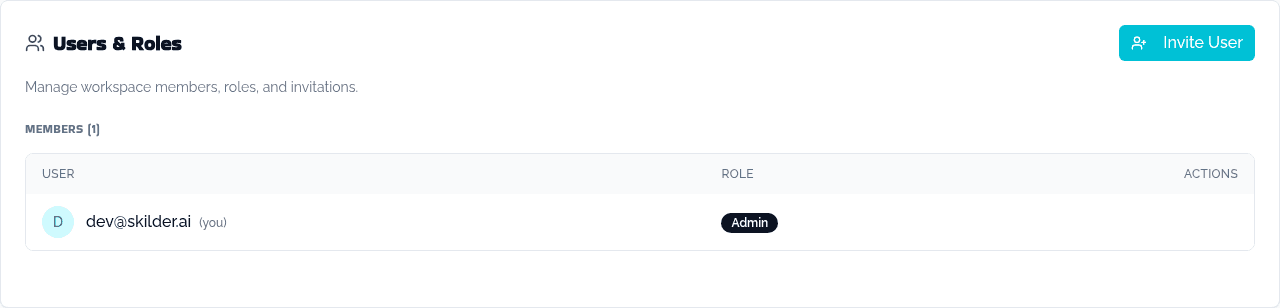
Roles
| Role | Can do |
|---|---|
| Admin | Everything a member can, plus: manage workspace settings, AI providers and MCP servers; create, edit, publish and switch guardrails; publish or delete any skill or role; invite, promote, demote and remove users; read workspace-wide activity. |
| Member | View skills, roles, tools and guardrails; create skills and roles; edit any skill or role; publish and delete the ones they own; read their own activity. |
Role is separate from ownership. A member can publish or delete a skill or role only if they own it. An admin can publish or delete any of them.
Invite a member
Click Invite User and fill in:
| Field | Values |
|---|---|
| Email address | The invitee's email. |
| Role | Member ("Can view tools and skills") or Admin ("Full access to all features"). Defaults to Member. |
Click Send Invitation. The invitation expires after 7 days; a pending invite can be revoked from the same list. Once they accept, they land on the workspace's Home page.
Change a member's role
Open the row's action menu and choose Promote to Admin or Demote to Member. This applies immediately, with no confirmation step. You cannot change your own role.
Remove a member
Open the row's action menu and choose Remove from workspace, then confirm. They lose access to every workspace resource immediately. The skills, roles and guardrails they own pass to you, and their agent connections to this workspace are revoked. You cannot remove yourself: use Leave a workspace instead.
A workspace always needs at least one admin. The last admin cannot leave the workspace.